Computer rooms#
EPITA is equipped with computer rooms commonly referred to as machine rooms or PIE (Parc Informatique de l’EPITA) on all its sites. The Forge guarantees the proper functioning of computers.
At the Kremlin-Bicêtre and Villejuif sites, machine rooms are accessible 24/7. We do our best to ensure that a maximum number of workstations work properly, so we ask you to respect certain rules to not harm our work:
- Do not eat
- Do not drink anything other than water from an empty bottle
- Do not damage equipment: if the material degrades, we do not replace it before the following semester or next year
- Do not disconnect any cables (power, RJ45, HDMI, etc.)
- You have the right to bring your keyboard and/or mouse, but only to plug them into free USB ports
Finally, in order to respect your classmates and instructors, it is mandatory to have proper hygiene. The computer rooms tend to end up smelly quite fast…
All these rules are detailed in the machine hall charter that you must read and respect. In case of non-compliance with these rules, the sanctions will range from deactivating your account and a temporary exclusion to a disciplinary council.
If you notice a problem on a computer in the machine hall, please notify us on our Fleet Manager site.
Logging in#
How machine room computers work#
All machine room computers run NixOS, a Linux distribution. They boot over the network (PXE), which is why startup takes a little longer than usual — the system is loaded entirely from the network. Because of this, the local filesystem lives in memory: any file saved outside your AFS volume is permanently lost when the computer shuts down or reboots.
For persistent storage, use your AFS volume (more on that later).
Choosing an image at boot#
When the computer starts, a boot menu appears for a few seconds. It lets you pick a system image — a pre-built NixOS configuration that contains the software needed for a given period or course.
For new students starting in cycle préparatoire, the image to select is NixOS Prepa. During exams, a dedicated image (e.g. Exam Prepa) replicates the same environment under exam conditions.
If you miss the menu, the computer will boot into the default image automatically.
Logging in#
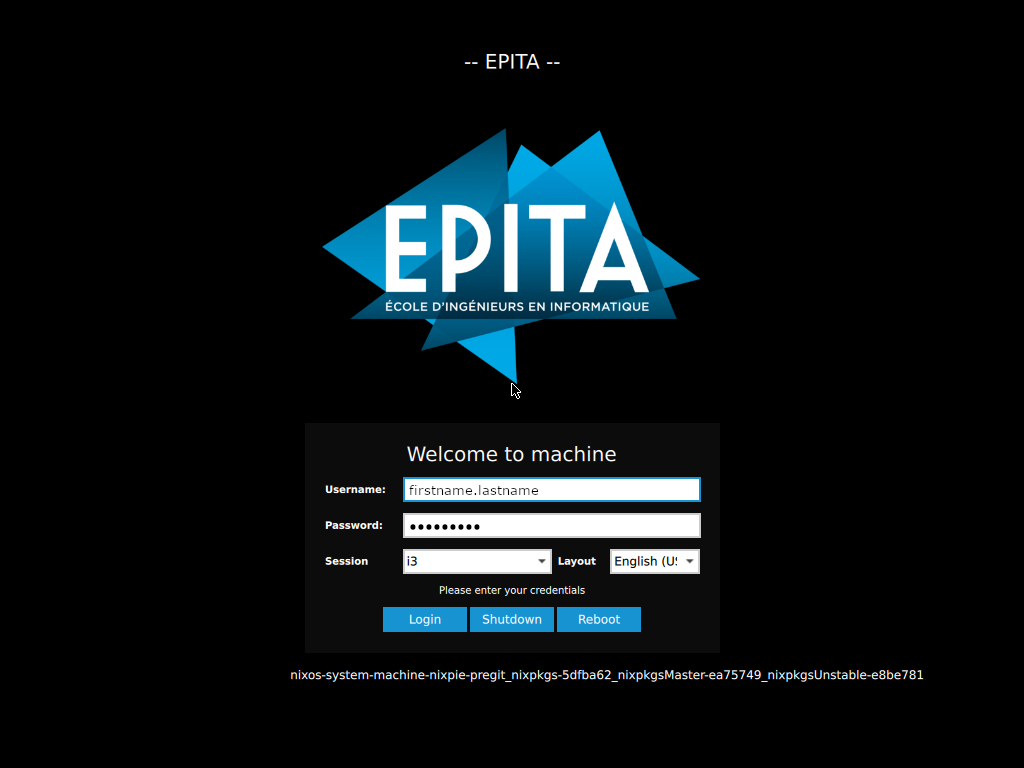
After the system has booted, a login screen appears. Use your Forge credentials:
- Username: the part of your EPITA email address before
@epita.fr(e.g.firstname.lastname) - Password: the Forge password you set up in the previous step
Keyboard layout: all keyboards in machine rooms are physical US layout keyboards (Villejuif uses UK layout). The login screen uses this layout by default. Keep this in mind when typing your password — punctuation and special characters are in different positions than on a French keyboard. The US layout is standard for programming because symbols like
{,},[,], and\are much easier to reach.
First login#
The first time you log in, a configuration wizard for the i3 window manager opens automatically. Press Enter twice to accept the defaults: this generates a configuration file using the Windows key (also called the “Super” key) as your main modifier key (Mod).
You’ll be able to evolve your i3 configuration throughout your studies, customizing your environment is a long-standing tradition among students.